
Key Takeaways:
- Azure CSPM scans VMs using both agent-based (continuous) and agentless (daily) methods to ensure comprehensive security of cloud resources.
- Scanning detects misconfigurations, malware, and vulnerabilities early, minimizing risk and meeting compliance and audit requirements.
- Real-time and automated assessments provide continuous monitoring, alerting users to issues and guiding remediation through Defender for Cloud.
- Agentless scans run every 24 hours by default, while agent-based protection provides deeper, real-time threat visibility, enabling users to choose the approach that best fits their needs.
- Scan results and security findings are easily viewed and exported in the Azure portal, facilitating rapid issue resolution and maintaining a robust security posture.
- These proactive practices keep virtual machines secure, reduce potential breaches, and help organizations confidently operate in multi-cloud and dynamic environments.
Azure CSPM (Cloud Security Posture Management) helps users maintain secure cloud setups. This post covers the basics, including the role of scanning virtual machines, various scan methods, and methods for viewing results.
What Is Azure CSPM and How It Works
Azure CSPM is an acronym for Cloud Security Posture Management in Azure. It’s a feature of Microsoft Defender for Cloud that looks for security gaps in your cloud resources. The tool identifies misconfigurations, weaknesses, and threats throughout Azure setups. Users receive alerts and remediation steps, helping keep the environment safe.
- The service evaluates resource metadata and activity logs using Azure Resource Graph and Azure Policy signals, covering virtual machines, storage, and networks.
- It inspects setups by applying rules derived from recognized standards, such as CIS benchmarks or Azure policies.
- Any gaps or misconfigurations found are flagged as recommendations for action.
- For example, an unsecured virtual machine is flagged, and CSPM suggests corrective measures.
Find misconfigurations, risks on your cloud easily
Try Agentless Cloud Vulnerability Scanner

Monitoring and Integration Features
1. Real-Time Monitoring and Secure Score
Azure CSPM monitors changes in real time. It monitors updates to resources to identify new risks as they emerge. This continual check serves as a guard against attacks before they occur. It surfaces the Microsoft Defender Secure Score (0‑100 %) for each subscription, providing a number that indicates how well protected the configuration is. Higher scores indicate fewer open issues.
2. Continuous Assessment and Azure Integration
CSPM evaluates configurations across compute, data, networking, identity, and other Azure services. It is fully integrated with the rest of the Azure toolkit. Users initiate the process by enabling Defender for Cloud on their subscriptions. Once it is in use, it begins to collect data with minimal manual effort. Assessments run continuously in near‑real time; no user‑scheduled scans are required, and results appear in the Azure portal.
3. Multi-Cloud Views and Automated Policies
Azure CSPM also offers multi-cloud views, but in Azure, it leverages native capabilities. It utilizes API calls to retrieve the information, making it highly efficient. In some cases, users can establish policies that require fixes to be carried out automatically.
Why Virtual Machine (VM) Scanning Matters in Azure
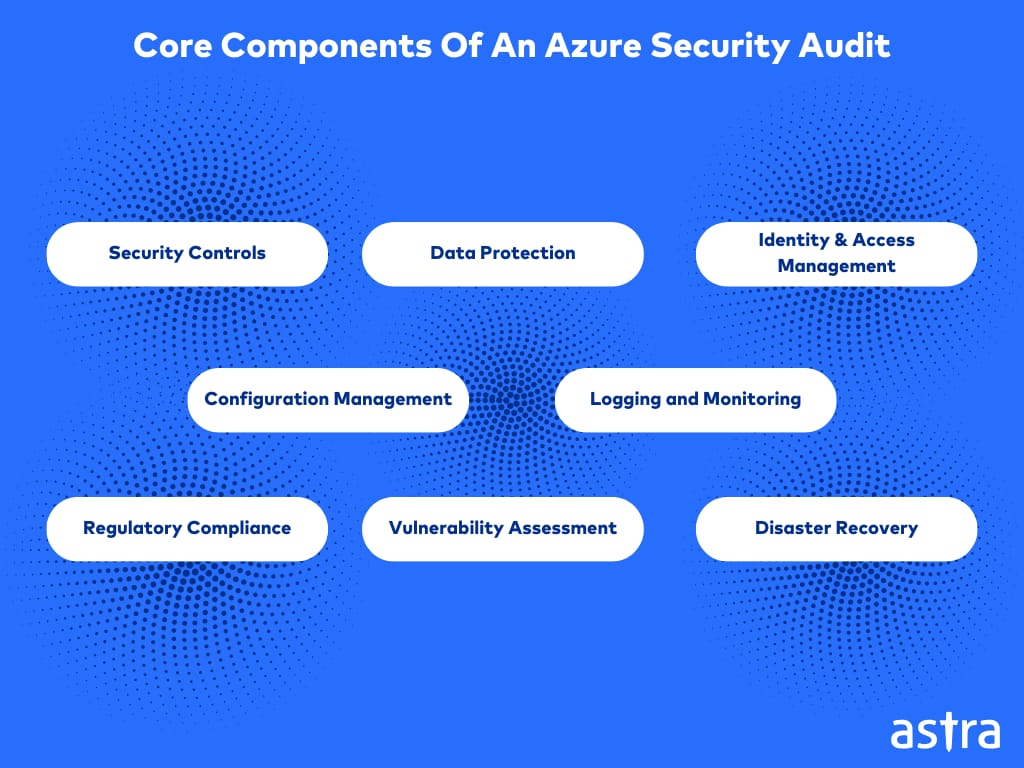
The virtual machine scanning in Azure helps identify security issues that, in specific scenarios, could lead to data leakage or compromise the system. VMs run critical workloads, and any weakness in VMs opens the door to attackers.
Key reasons VM scanning is essential include:
- Early detection of vulnerabilities allows for quick fixes.
- VMs connect to networks and handle sensitive information, increasing risk.
- Scanning identifies unpatched software and vulnerable open ports.
- It detects well-known vulnerabilities at both the operating system and application layers.
This proactive approach helps teams respond effectively to emerging threats.
Key Benefits for Security and Operations
1. Malware Protection and Incident Response
Defender provides malware protection for Servers (which complements CSPM findings). Malware can siphon off data or even shut down operations. Azure inspects code by scanning files and processes. This process is essential for adhering to rules such as the GDPR or industry standards, which require periodic checks to be made.
Scanning supports incident response. If an attack occurs, historical scan data can help trace the entry point. It indicates what was modified in the VM before the problem manifested. This accelerates recovery and reinforces future configurations.
2. Cost Efficiency and Security Best Practices
Scans also keep costs in check. Patch fixes also prevent breaches from causing downtime, which can be costly and detrimental to operations. It ensures the smooth operation of resources without hindrance from security threats. Scan results guide developers toward better security practices. They learn not to start any weak/insecure config.
3. Adaptation to Cloud Dynamics
The way Azure scans is also a reflection of the cloud dynamics, where VMs can grow and shrink very fast. Humans can’t do it all fast enough, so you also need computerized checks. They continue running even without interrupting their work, affording full coverage.
In the absence of VM scanning, the VMs themselves serve as a compromise entry point for wider attacks. Cloud VMs are attractive targets because they are powerful and accessible. Scanning prevents this by making sure you follow the security standards.
4. Comprehensive Security Layering
CSPM also integrates with Azure’s threat protection, layering features such as endpoint detection on top of it. This combination creates comprehensive defenses. It also addresses hybrid environments, where on-premises and cloud resources are combined. Its broad reach is intended to cover everything.
5. Audit Compliance and Reporting
Lastly, periodic scanning satisfies audit requirements. It generates logs and reports that adhere to security due diligence. This assists with reviews and develops trust with stakeholders.
How Azure Scans VMs: Agent-Based, Agentless, and Antimalware Tools
| Scanning Method | Installation | Scan Frequency | Key Features | Ideal Use Case |
|---|---|---|---|---|
| Agent-Based | Software installed on VM | Continuous, real-time | In-depth internal scan; monitors behavior; reports vulnerabilities | Modern threat hunting, detailed insight |
| Agentless | No installation | Daily (fixed schedule) | Uses disk snapshots, offline analysis, and minimal overhead | Lightweight scanning, low VM impact |
| Antimalware | Integrated with agent or agentless | Continuous or daily | Detects and updates malware definitions; focuses on malicious software | Malware-specific detection |
| Third-Party Tools | Varies (agent or marketplace deployment) | Varies | Additional scanning options like Qualys or Trend Micro | Specific enterprise needs |
Azure uses different methods to scan virtual machines for security issues. These include agent-based, agentless, and antimalware options. Each method suits specific needs and setups.
1. Agent-Based Approach
Agent-based scanning installs software on the VM. This agent retrieves information from within the machine. It examines files, processes, and configuration details.
For instance, Microsoft Defender for Endpoint functions like an agent. It monitors behavior and raises alarms if anything appears suspicious. This is very insightful, but it necessitates setup on every VM. Users can deploy it through Azure policies or manually to activate it. Once running, it scans continuously. It identifies software weaknesses and then reports them to Defender for Cloud.
2. Agentless Approach
With agentless scanning, nothing is installed on the VM. It doesn’t collect data, but instead uses Azure’s cloud capabilities. It creates snapshots of VM disks and analyzes them offline. This prevents having to take performance hits on the VM.
Agentless scanning detects vulnerabilities, secrets, and software inventory. Azure performs agentless scans every 24 hours by default. You enable it in Defender for Cloud settings. Currently unsupported for VMs using customer‑managed keys.
Agentless vulnerability scans are conducted regularly, typically on a daily basis. In this modality, malware controls are performed, along with quick and full scans. If the scans are more than thirty days behind, Azure will report it as a recommendation.
3. Antimalware and Additional Options
Antimalware applications specialize in identifying malicious software. Microsoft Defender Antivirus works with both agent-based and agentless scans. In agentless mode, it uses disk snapshots to search for signs of a malware infection.
This can find threats without executing on the VM. For the Defender for Servers plans, users enable antimalware in Defender. It checks for known malware and automatically updates definitions. Together with vulnerability scans, it offers wide-ranging coverage.
4. Third-Party and Marketplace Scanning Tools
Azure also has tools such as Qualys or Trend Micro available for additional scanning. These may be either agent-based or deployed using a marketplace. But most needs are covered by native Azure tools.
5. Scan Timing and Scheduling Differences
Scan timing varies by type. The agent-based model runs continuously, updating in real-time. Agentless scanning runs on a daily schedule. Agentless doesn’t allow users to alter the 24-hour cycle, but in some situations, they can initiate manual scans.
6. Choosing the Right Approach: Tradeoffs and Considerations
There are trade-offs between the methods, depending on the VM type. Agentless fits brief set up with minimal overhead. Agent-based protection works for modern threat hunting. Azure integrates these methods for defense-in-depth. Agentless handles broad security checks, while agents provide more granular controls. Antimalware adds a specific malware focus.
For a multi-cloud environment, Azure uses agentless scanning for AWS and GCP VMs. This unifies scanning across platforms. These approaches maintain VM security with minimal user intervention. They can handle varying workloads and security levels.
How to Check VM Scan Status and Results in Azure
1. Step-by-Step: Viewing Scan Status
- Open the Azure portal and navigate to Microsoft Defender for Cloud.
- Select Recommendations from the menu.
- Look for entries related to VMs, such as “Machines should have vulnerability findings resolved.”
- Select a recommendation to:
- View the list of affected VMs.
- See scan dates, findings, and severity levels.
- Check malware flags to ensure scans are up to date.
2. Viewing Security Findings in Defender for Cloud
Use Azure’s Assets (formerly Inventory) page in Defender for Cloud to get detailed scan results.
- Filter by VM to review vulnerabilities, secrets, or malware incidents.
- Export findings via built-in export options:
- Download as CSV.
- Send to Log Analytics for further querying.
3. Verifying Scan Status and Settings
Make sure that the required security features are enabled and validated across your environment.
- Navigate to Environment settings > Workload protections.
- Verify that Vulnerability Assessment and Malware Scanning are enabled.
- For bulk/complex queries, use Azure Resource Graph and write KQL queries to track scan status across multiple VMs.
4. Monitoring via Third-Party and Native Tools
Depending on the toolset, scan results may be available in different locations; however, Azure Defender provides integrated options.
- For third-party tools, consult their dashboards for combined scan results.
- Rely on Defender for Cloud for unified Azure-native reporting.
- Enable email alerts to stay informed about new vulnerabilities or overdue scans.
5. Getting Scan Summaries for Individual VMs
To check scans on a specific VM:
- Open the VM blade in the Azure portal.
- Select the Security section to view recent scan summaries.
- Note: Agentless scans appear on the day after they run—always check scan timestamps for freshness.
6. Issue Resolution and Status Updates
To address identified issues and keep your scan data current:
- Verify your subscription includes the correct Defender for Servers or CSPM plan.
- Use PowerShell or Azure CLI (e.g., Get-AzSecurityAssessment) to check scan statuses programmatically.
- Track remediation tasks and, once vulnerabilities are patched, trigger a rescan to confirm updates and maintain visibility into your VM’s security posture.
Final Thoughts
Azure CSPM provides a vital perspective on virtual machine scanning, offering agentless methods that run daily to detect anomalies and malware quickly. By increasing knowledge of what it is, why it is relevant, and how there are different ways to scan your cloud environment, people can better protect their cloud presence from emerging threats.
Solutions like Astra Security build on this by providing custom cloud pentesting services, such as manual testing and compliance assistance, to help address what may be missing from automated scans.
Applying these best practices will help you take a proactive approach towards security, thus minimizing security risks and supporting business continuity on Azure.
FAQs
1. How often are Azure VMs scanned for vulnerabilities?
Azure agent-based scans operate continuously and in real-time, while agentless scans run every 24 hours by default. Users can view results the day after agentless scans, but scan timing and features vary based on the method and plan selected.
2. Can I export VM scan findings for audits or compliance?
Yes, you can export scan results from the Assets (Inventory) page in Defender for Cloud. Export options include downloading a CSV file or sending data directly to Azure Log Analytics for more advanced querying and audit preparation.
3. What should I do if my VM scan is overdue or shows vulnerabilities?
First, confirm Defender for Servers or CSPM is enabled. Review scan results in the portal, address flagged vulnerabilities, and then trigger a rescan. After remediation, updated results provide assurance of your VM’s improved security posture.